Set up GhidraMCP with Claude Code
Install Ghidra and LaurieWired's GhidraMCP 2.0, connect it to Claude Code or Claude Desktop, and run a first session on a CrackMe or your own binary.
GhidraMCP is a Ghidra plugin plus a small MCP server that lets an AI client such as Claude Code list functions, read decompiled code and rename things in the program you have open in Ghidra. This guide gets you from nothing to a working Claude Code session on a CrackMe or a binary you own. It is free apart from your Claude plan, and it suits anyone who has opened Ghidra before or is willing to learn the basics alongside the AI.
GhidraMCP changed a lot in version 2.0 (released 10 October 2026). Older tutorials, including some videos, use a separate Python bridge script and an older Ghidra version. The 2.0 release notes say that bridge is no longer needed. Follow the current README rather than an old video if they disagree.
Before you start
- Ghidra 12.1.4. The GhidraMCP README pins this exact version, and the extension zip is built for it. Ghidra is free from ghidra-sre.org or the NSA GitHub releases.
- A 64-bit JDK 21. Ghidra 12.1.4's Getting Started guide lists the Java 21 JDK as a minimum requirement.
- uv, which runs the MCP server for you. If you would rather use plain Python, the README says Python 3.10+ with
pip install git+https://github.com/LaurieWired/GhidraMCPworks, and you then callghidra-mcpdirectly in the commands below. - Claude Code (or Claude Desktop) and a Claude plan or API key.
- A target you are allowed to analyse: a CrackMe from a CTF or training site, or a program you wrote yourself. Compile a tiny C program with a password check if you have nothing else.
1. Install Ghidra
Download ghidra_12.1.4_PUBLIC_20260921.zip, extract it, and start it with ghidraRun (Linux and macOS) or ghidraRun.bat (Windows). If Ghidra cannot find Java, follow the JDK steps in its Getting Started guide and add the JDK's bin directory to your PATH.
Create a project (File > New Project), import your target (File > Import File), open it in the CodeBrowser and let auto-analysis finish. GhidraMCP answers questions about the program open in this window, so the AI sees nothing until this step is done.
2. Install the GhidraMCP extension
Download the latest release from the releases page. For 2.0 the download is GhidraMCP-release-2-0.zip; inside it is the Ghidra extension zip. The README's steps are:
- Run Ghidra.
- Select
File>Install Extensions. - Click the
+button. - Select the
ghidra_12.1.4_PUBLIC_<date>_GhidraMCP.zipfrom the downloaded release. - Restart Ghidra.
- Make sure
GhidraMCPPluginis enabled inFile>Configure>Developer. - Optional: change the port under
Edit>Tool Options>GhidraMCP HTTP Server.
The plugin runs a small HTTP server inside Ghidra. By default the MCP server expects it at http://127.0.0.1:8080/.
3. Connect Claude Code
The README gives this command:
claude mcp add ghidra -- uvx --from git+https://github.com/LaurieWired/GhidraMCP ghidra-mcp --ghidra-server http://127.0.0.1:8080/
Per the Claude Code MCP docs, everything after -- is the command that starts the server, and the server is added at local scope by default: it only loads in the folder where you ran the command. Run it from the folder you will work in, or add --scope user before the name to make it available everywhere:
claude mcp add --scope user ghidra -- uvx --from git+https://github.com/LaurieWired/GhidraMCP ghidra-mcp --ghidra-server http://127.0.0.1:8080/
If you changed the port in Ghidra, change --ghidra-server to match.
Claude Desktop instead
Claude Desktop reads the same JSON shape the README shows for generic clients. Open Settings > Developer > Edit Config (the file is claude_desktop_config.json, per the MCP docs) and add:
{
  "mcpServers": {
    "ghidra": {
      "command": "uvx",
      "args": [
        "--from",
        "git+https://github.com/LaurieWired/GhidraMCP",
        "ghidra-mcp",
        "--ghidra-server",
        "http://127.0.0.1:8080/"
      ]
    }
  }
}
Quit Claude Desktop fully and reopen it.
Headless option
GhidraMCP 2.0 can also import and analyse a binary itself through PyGhidra, with no Ghidra window. The README says this needs Python 3.10 to 3.13, the extension installed, and GHIDRA_INSTALL_DIR pointing at your Ghidra 12.1.4 folder:
uvx --python 3.13 --from "ghidra-mcp[headless] @ git+https://github.com/LaurieWired/GhidraMCP" ghidra-mcp --headless --binary /path/to/target
Add --project DIR to keep the Ghidra project and your renames between runs. Use the GUI first; headless is easier once you know what a good session looks like.
Check it works
- Make sure Ghidra is running with your target open in the CodeBrowser.
- In a terminal, run
claude mcp list. Theghidraentry should show✔ Connected. If it says✘ Failed to connect, runclaude mcp get ghidrato see the error. - Start
claudeand type/mcpto see the server and its tool count. - Ask something small and checkable:
Using the ghidra tools, list the functions in the open program and decompile the entry point.
Do not guess: only report what the tools return.
Compare the answer with what you see in Ghidra. If the function names and addresses match, the connection works.
Your first session on a CrackMe
Give Claude a narrow goal and a way to check its answer. A prompt along these lines works well:
This is a CrackMe I downloaded for practice. Find the function that checks the input,
explain the check in plain English, and rename the functions and variables you
understand. Show me the decompiled code you based each conclusion on.
Derive the answer from the code; do not brute force it.
Then run the CrackMe with the answer Claude gives you. A correct password or key is the test that matters; a confident explanation is not. Look at Ghidra while Claude works: renamed functions appear in the CodeBrowser, so you can follow its reasoning and undo bad names.
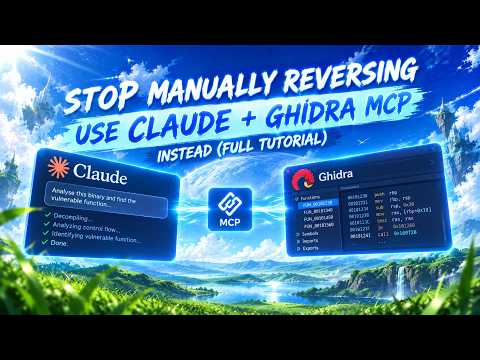
Jackson Mittag's Claude and Ghidra MCP CrackMe tutorial walks through this same kind of session on video. Check which GhidraMCP version it uses before copying its install steps.
Where AI goes wrong
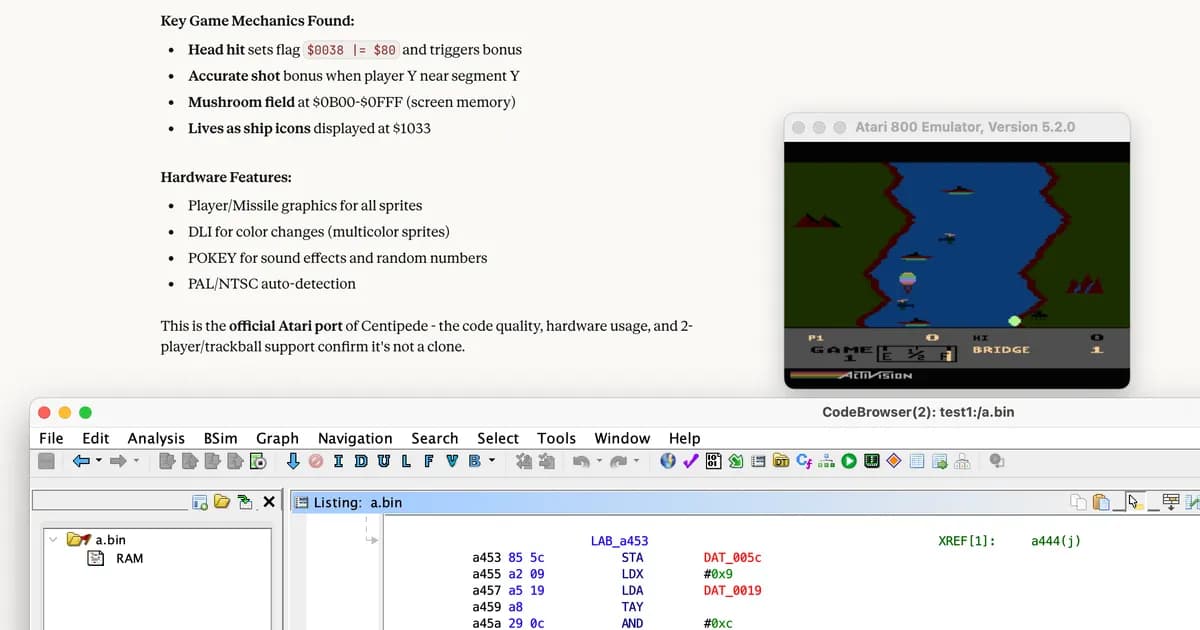
- Wrong load address or loader. In the River Raid project, Claude noticed the 8 kB Atari ROM was loaded at the wrong address but could not rebase it through the MCP tools, so the author did that by hand. GhidraMCP exposes analysis, not every Ghidra setting. Get the import right yourself: processor, base address and loader.
- Confident misidentification. The same project notes that Claude guessed the game was Centipede. Treat the model's claims about what a binary is as guesses until the code confirms them.
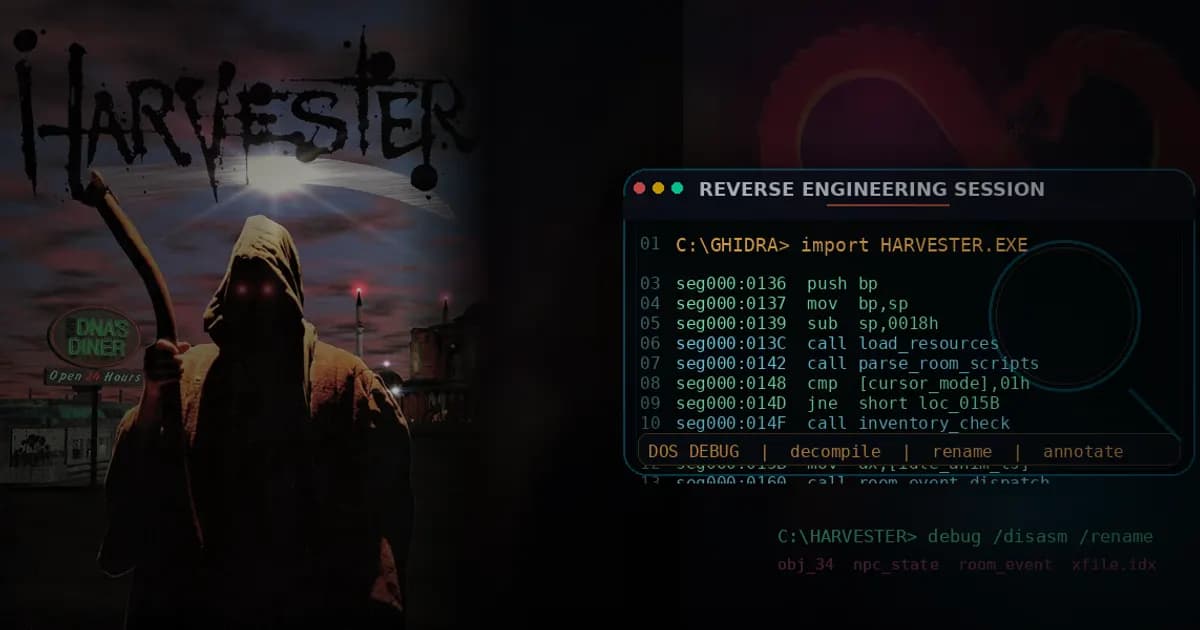
- Prep work that only a human can do. For Harvester, the author unbound the DOS extender by hand in DOSBox and installed an LE loader for Ghidra before Codex could do useful work through a Ghidra MCP server (a different one, bethington/ghidra-mcp, but the lesson carries over). He also wrote an
AGENTS.mdfile to guide it and reviewed the results. Unusual formats need the same preparation. - Patching is still on you. In River Raid the author applied the final byte patch by hand. Verify patches in an emulator or a test run, not in the chat.
- Uneven results between models. CrackMeBench found large differences between models on the same stripped CrackMes, so one failed session does not mean the setup is broken. Try a narrower prompt or another model before rebuilding your install.
Projects that use this
- Claude and Ghidra MCP work through a CrackMe: a step-by-step video of the setup and a full CrackMe session.
- River Raid unlimited lives: Claude found the lives-decrement code in a 6502 ROM through GhidraMCP; the author rebased and patched by hand.
- Harvester ScummVM engine: Codex drove Ghidra through an MCP server (bethington/ghidra-mcp) to map a DOS/4GW executable, with first scenes working in about a day.
- OALabs live VIBE RE: a live stream comparing MCP plugins for IDA and Ghidra on real samples.
- CrackMeBench: a benchmark of agents recovering validation logic from stripped CrackMes.
Further reading
- GhidraMCP README and releases
- Ghidra Getting Started guide
- Claude Code: connect to tools via MCP
- Connect local MCP servers to Claude Desktop
- Tool pages: GhidraMCP, Ghidra, Claude Code